 |
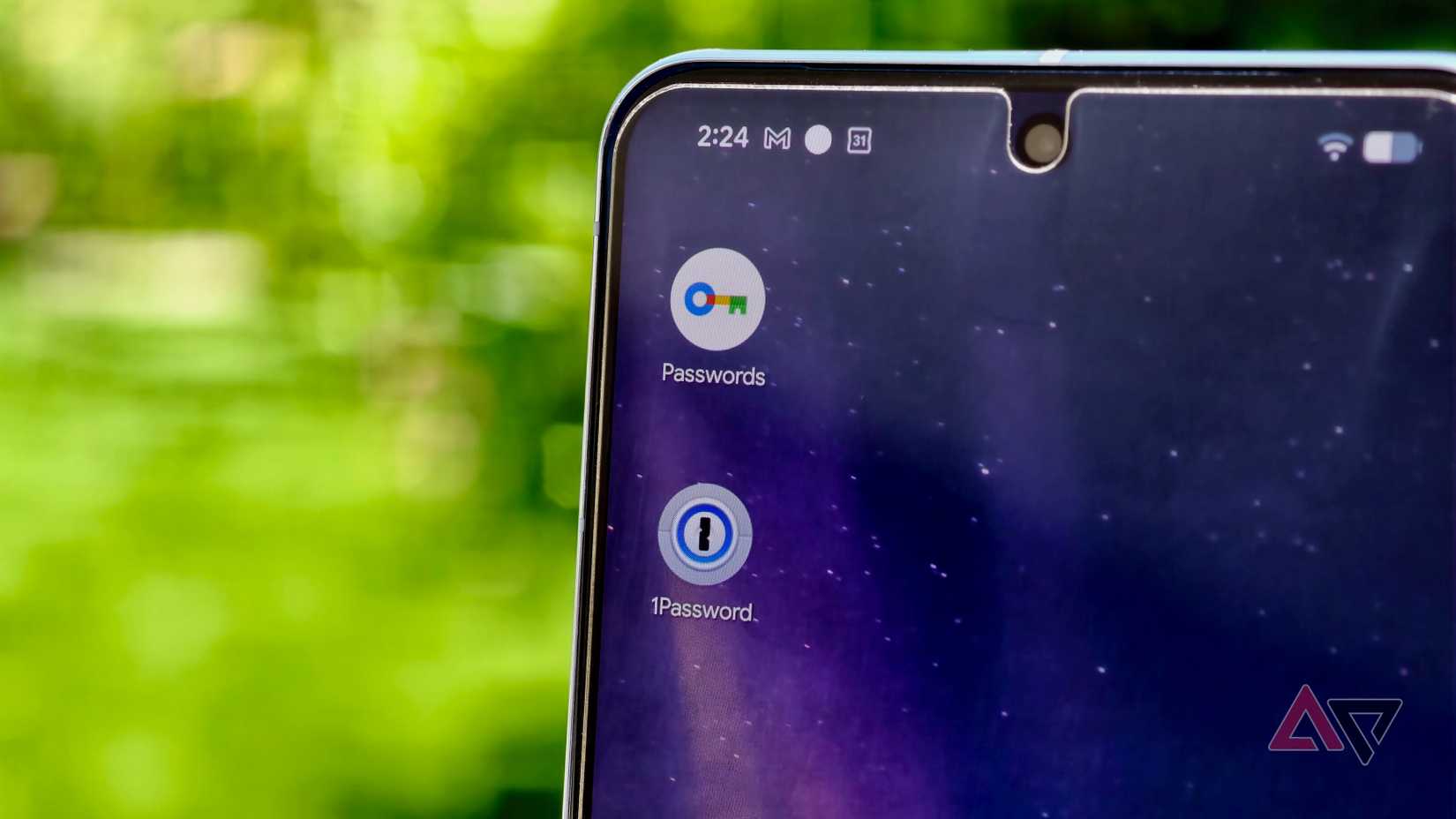
I’ve been using 1Password as my go-to password manager for years now. It safely stores all my passwords, credit card information, and other sensitive data, filling them in whenever I need them.
For the longest time, I never considered switching to anything else.
The recent price hike for the yearly subscription was the push I needed to reconsider my options. So, I decided to switch to Android’s built-in Google Password Manager and see if I could live without my old password manager.
A few weeks later, here’s what I’ve gained, what I’ve missed, and whether the switch was worth it.

Stop asking ChatGPT to create your passwords
Using AI to generate passwords is a dangerous security mistake
Seamless autofill!
Moving my passwords from 1Password to Google Password Manager was a breeze. I exported my entire 1Pass vault as a CSV and re-imported it into Google Password Manager in a few minutes.
The bigger challenge was migrating my passkeys. Unlike passwords, passkeys can’t be exported or imported as they are tied to the specific device they were generated on.
So, I had to manually recreate and re-add all my passkeys to Google Password Manager. Not difficult, but time-consuming and something to keep in mind if you plan to migrate away from 1Password or any other password manager.
After the initial migration hurdle, I immediately noticed the seamless autofill experience. For all the improvements Google has made to third-party autofill on Android over the years, it still doesn’t work as reliably as it should.
That’s not the case with Google Password Manager because it’s directly built into Android.
Whenever a login field comes up — whether on a website or in an app — Google Password Manager instantly surfaces the relevant login details as an autofill option.
To be fair, 1Password’s autofill experience on Android has improved recently. Plus, the shortcomings are not even the company’s fault, as it works with what Google provides.
Still, switching to a native solution made me realize what I was missing out on.
The difference was even more obvious when logging in to services that use passkeys.
Google Password Manager’s passkey handling on Android felt noticeably more seamless than 1Password’s. Again, that’s no surprise, since Android and Google Password Manager are both Google products.
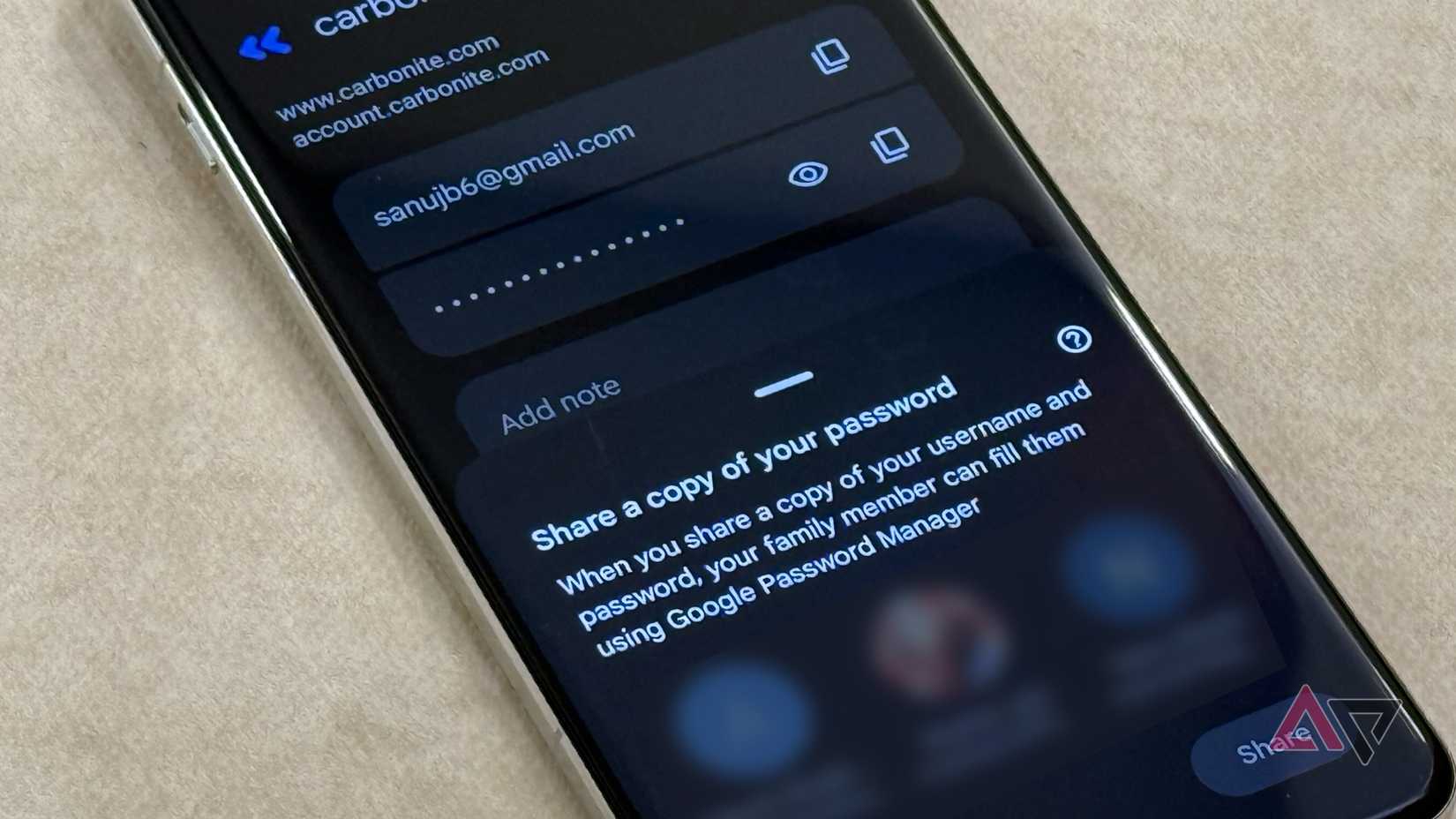
Another benefit of Google Password Manager is its price tag — it’s completely free to use. And for something that costs nothing, it covers the basics well, with features like cross-device sync, Password Checkup, and password sharing.
That free price tag was a major selling point for me, especially after 1Password’s recent price bump.
I went passwordless: Here’s how my passkey journey has been so far
Is the world ready for passkeys, or should you wait a little longer?
But it’s not all sunshine and rainbows
A basic password manager at best
On paper, Google Password Manager may seem like a decent option. But the more I used it, the more I realized how basic Google’s implementation really is.
Yes, free password managers offer cross-device sync, password checkup, and password sharing. However, they all come with some frustrating caveats.
Cross-device sync is a mess because Google Password Manager is not available as a native app.
Since I use a MacBook, iPad, iPhone, and multiple Android devices, this roadblock immediately made me reconsider my move from 1Password. I could access my passwords from these devices, but the entire process felt clunky and unreliable.
Likewise, password sharing is strangely limited to accounts added as family members to your Google account.
I frequently share passwords and notes with my friends and office colleagues. This limitation meant I had to copy and paste passwords in plain text for sharing, creating a security risk.
Google Password Manager also lacks the concept of a vault. In 1Password, my wife and I share a dedicated vault where we keep logins we both need: streaming services, bank accounts, and similar accounts.
Any password saved in the vault instantly appears to the other, without any manual sharing.
There’s no such functionality in Google Password Manager. And that meant I had to manually share such shared logins with my wife one by one.
Likewise, I had separate vaults for work and personal logins in 1Password. That’s not possible in Google’s offering.
Google’s password checkup tool is quite basic as well and doesn’t include dark web monitoring. It only flags weak or reused passwords.
Another drawback with Google Password Manager is that it’s strictly a password manager. It can only store login credentials, and nothing else.
1Password acted as my digital vault, storing all my passwords, credit card information, bank details, and other sensitive data.
Even when storing passwords, Google Password Manager doesn’t allow adding notes or other relevant information.
What really stings is the lack of built-in two-factor authentication (2FA) codes.
In 1Password, my TOTP codes lived in the same entry as my login credentials. This made the sign-in process seamless: autofill the password and then grab the code from the same app.
Google Password Manager cannot store or generate 2FA codes. So, now I have to use another authenticator app to generate codes.
That’s an extra step that adds unwanted friction when logging in to apps and services, and something I never really noticed before.
Was the switch worth it?
A few weeks in, my feelings about the switch are mixed.
For everyday use on Android and Chrome, Google Password Manager is great because it just works and it’s free to use.
However, as someone juggling between devices across different platforms — a MacBook, iPad, iPhone, and multiple Android phones — I quickly bumped into Google Password Manager’s limitations.
It made me realize that I took many of 1Password’s features for granted, the ones that quietly kept my workflow smooth and seamless.
For now, I am letting Google Password Manager handle the basics. But it’s clear that I can’t let go of 1Password just yet.
Original article: News Kerala
Labels: Tech News